Reading a PDF is often just the beginning
You might want to move part of a report into your notes, send material to a colleague for editing, or turn a scanned document into usable text. PDFs work well for reading and sharing, but copying and pasting is not always enough for the next step.
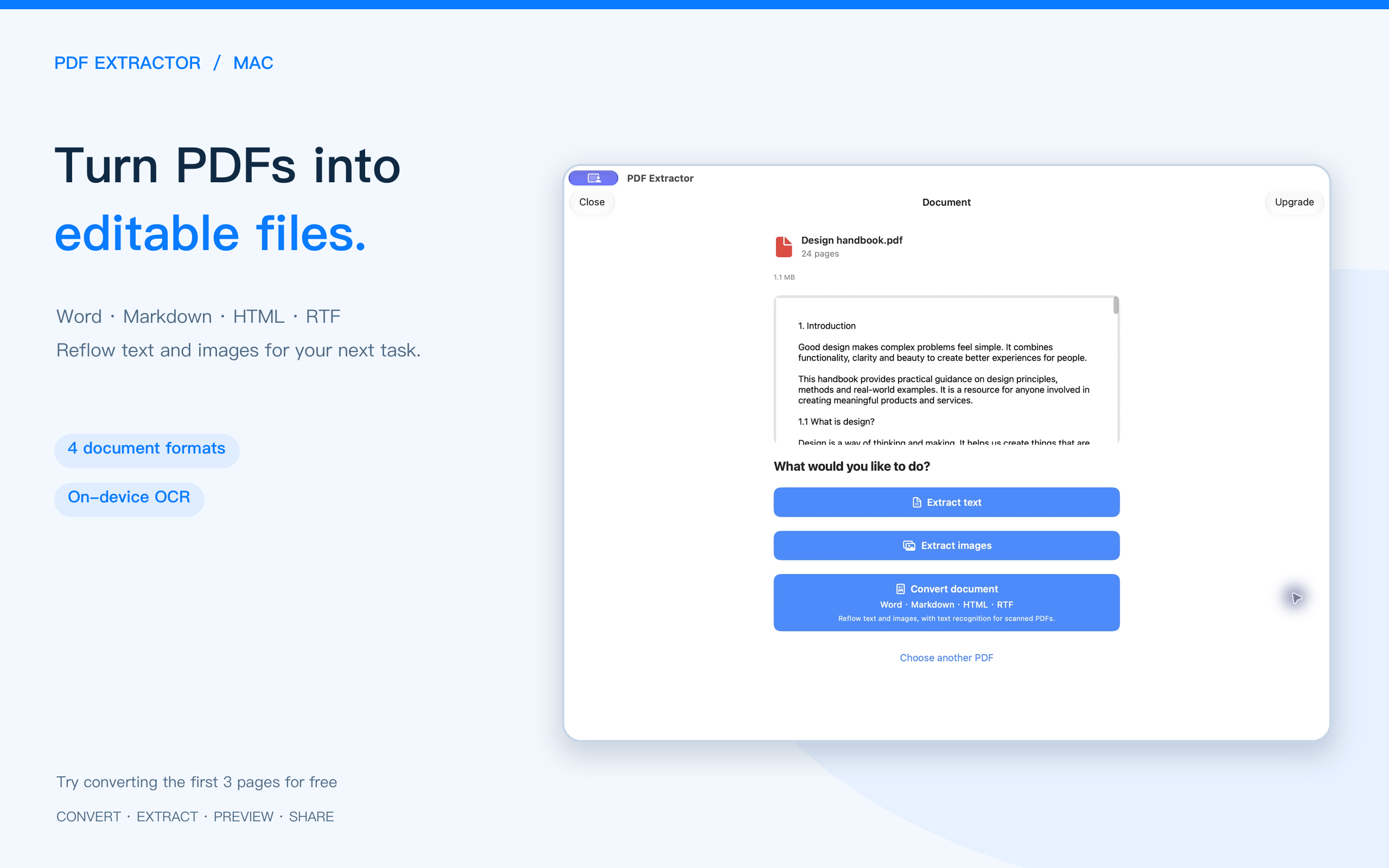
The updated PDF Extractor adds document conversion alongside plain text and image extraction. It reflows text and images into Word (DOCX), Markdown, HTML or RTF, on iPhone, iPad and Mac.
Four formats for what comes next
The best format depends on where you plan to use the content after exporting it.
- Word (DOCX): keep editing, add material or collaborate in a word processor. The export is a standard .docx file.
- Markdown: organize notes, write drafts and work with plain-text tools.
- HTML: read converted text and images in a browser, with rendered and source views in the preview.
- RTF: keep rich text and embedded images for further work in an RTF-compatible editor.
HTML and Markdown embed image data, so exports do not depend on temporary image folders. Some Markdown readers filter these images. Choose HTML when broad support for reading text and images together matters most.
A complete conversion, step by step
Try a familiar file first so you can judge whether the result fits your next task.
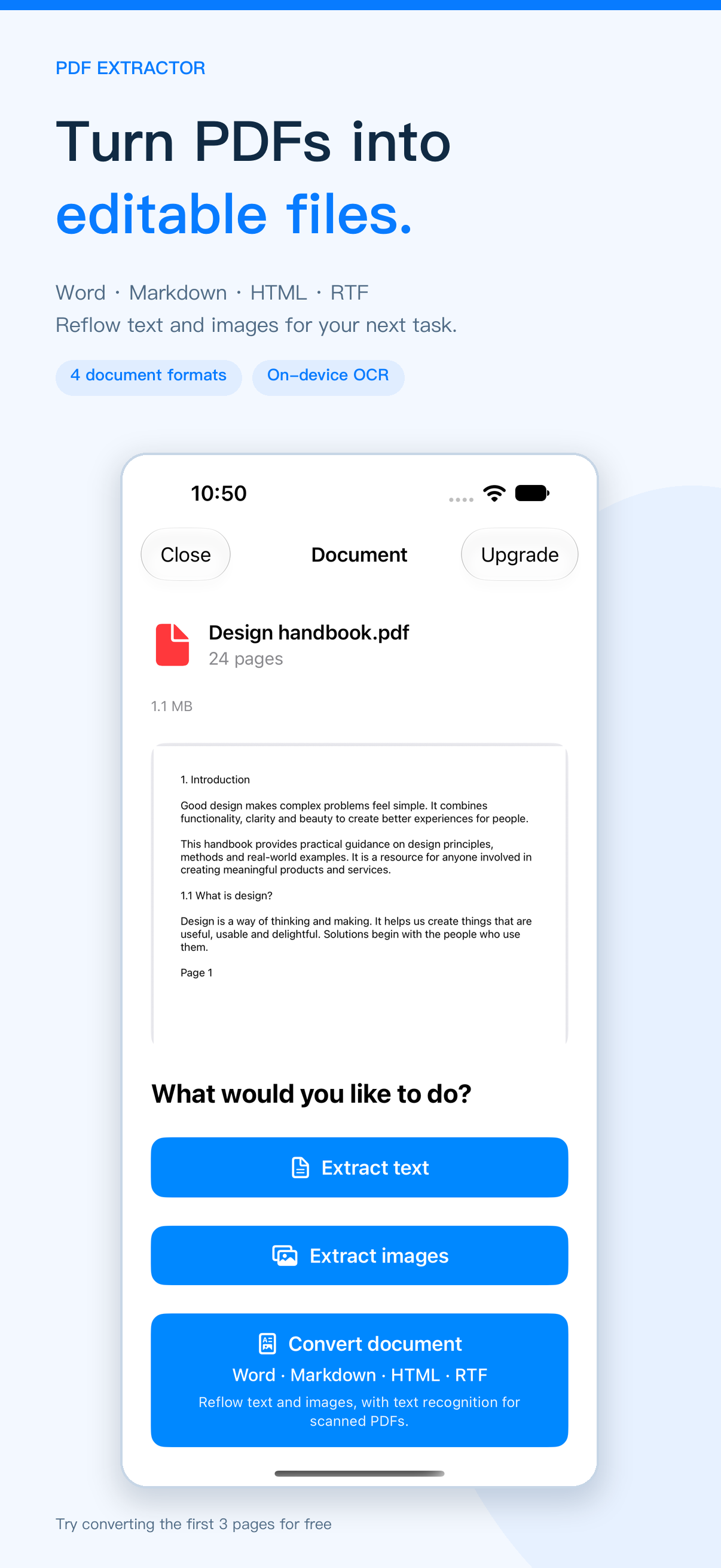
- Import: choose a PDF on iPhone, iPad or Mac.
- Convert: select document conversion and an output format. Power user can choose a page range.
- Preview: check headings, body text, images and tables. Review OCR results for scanned pages.
- Export: save or share, then open the file in the editor you intend to use.
Preview before you save or share
Import a PDF, choose document conversion and review the result. Save or share when it is ready. Switching formats reuses the same reflow result instead of running the conversion again.
HTML lets you switch between a rendered view and source; Markdown shows source text. On Mac, HTML, RTF and DOCX use a continuous text-and-image preview with original page markers. Plain text and image exports also open a preview first, so you can check the content before saving.
On-device recognition for scanned PDFs
For PDFs whose pages contain scanned images, document conversion supports on-device OCR. Recognition quality depends on scan clarity, text and page layout.
Conversion reorganizes text and images; it does not reproduce the original PDF layout pixel for pixel. Check the preview carefully for complex tables, multi-column pages and blurry scans before relying on the output.
Know what you can try for free
Use your own PDF to check the result before deciding whether to upgrade.
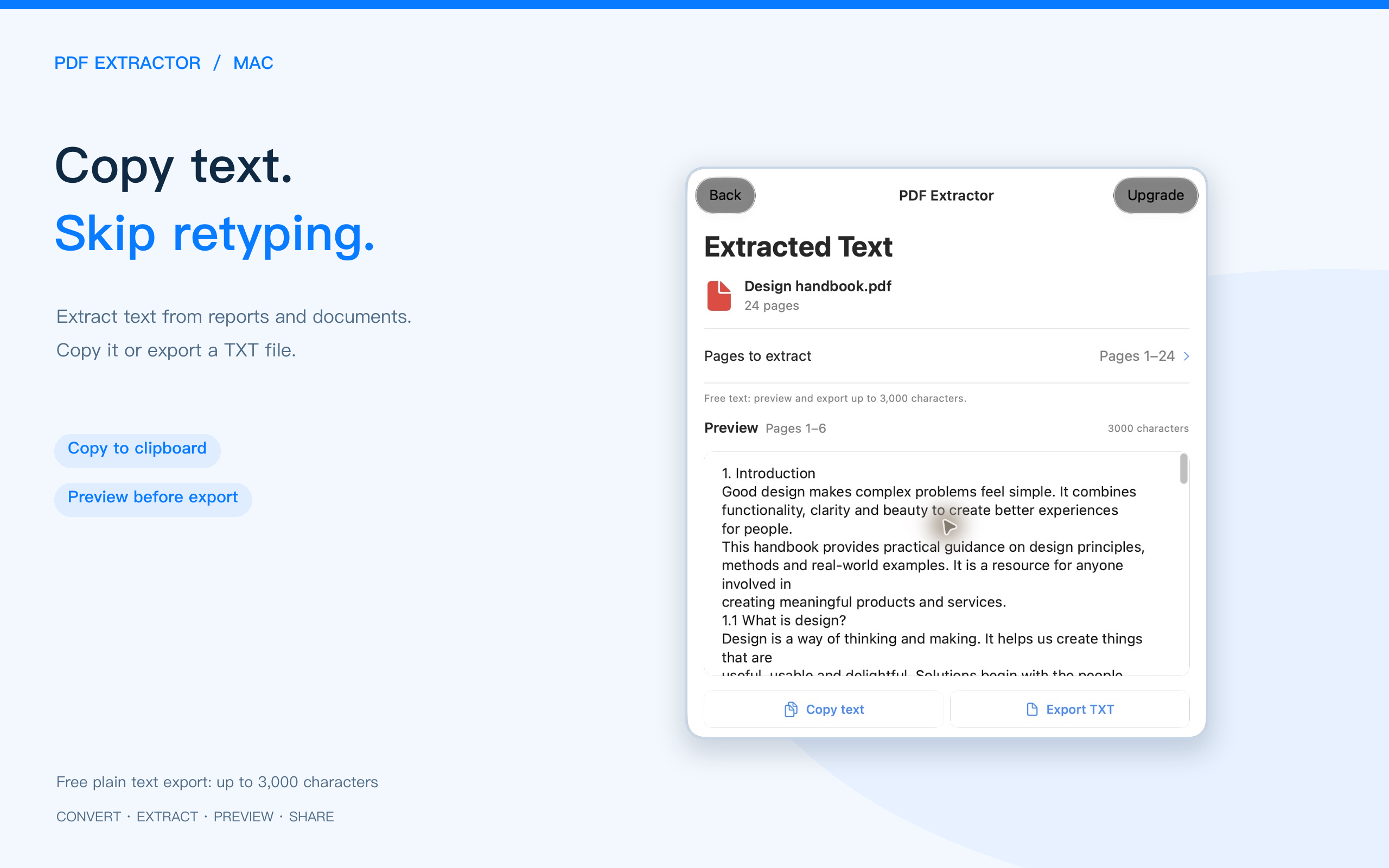
- Plain text: preview and export up to 3,000 characters for free.
- Document conversion: preview and export the first 3 original PDF pages in Word, Markdown, HTML and RTF. Shorter documents use their actual page count.
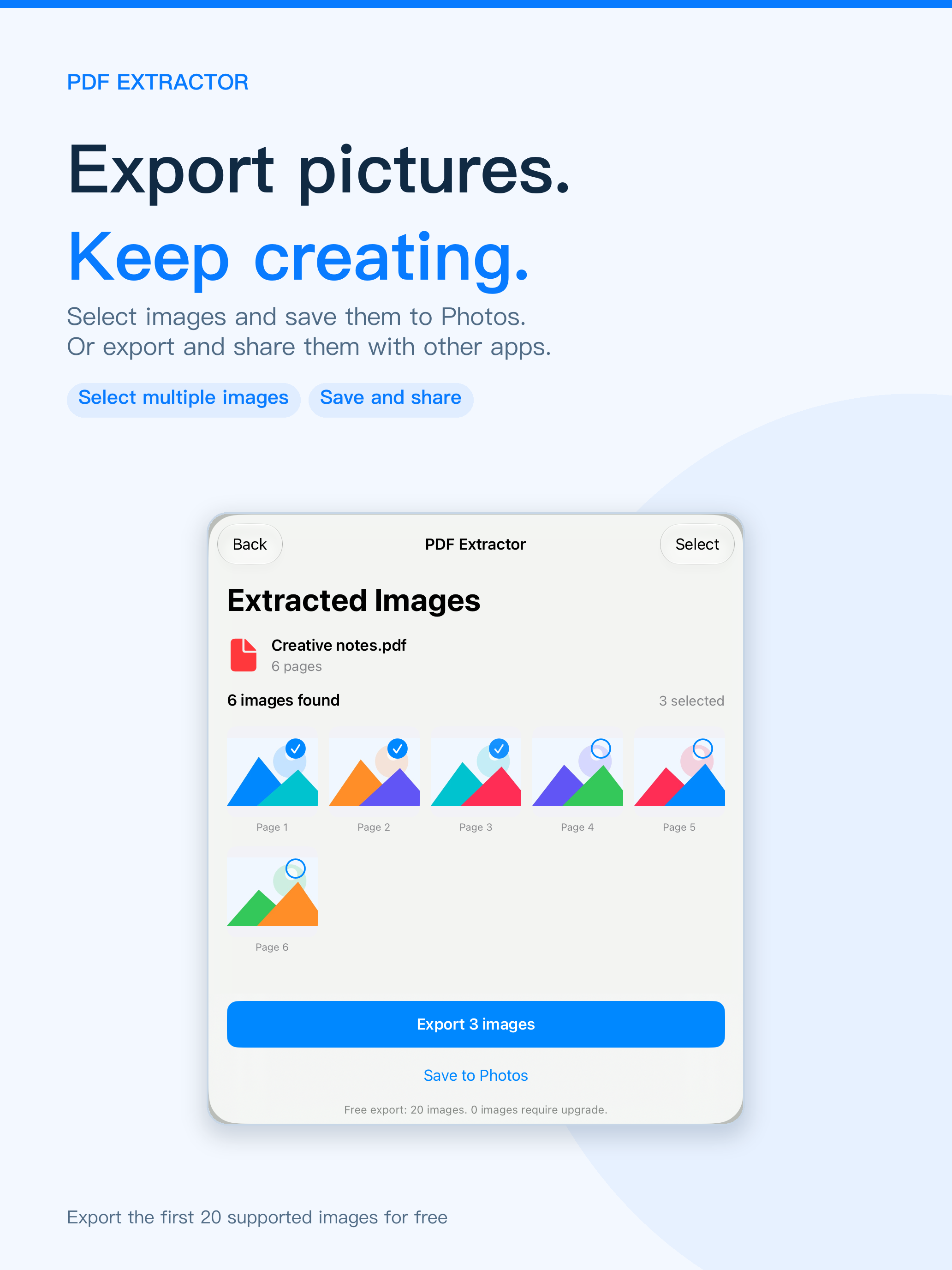
- Standalone image export: the first 20 supported embedded images are included.
- Power user: remove text and image limits, convert full documents, choose page ranges and copy selected text.
The first-3-page document allowance is separate from the 3,000-character plain text limit and the standalone image export limit. See the in-app purchase screen for current pricing.
Put your existing material to work
Choose DOCX when you want to edit, Markdown when you want to take notes, and HTML or RTF when you want text and images together. Previewing a familiar PDF with the free allowance is a practical way to see how the updated conversion fits your work.